
Sessions and devices
Settings → Sessions & devices lists the browsers and apps signed in to your account, and the devices that already triggered a new-device login email. Any team member can open this page. Team administrators also choose who receives those emails under Team configuration.
Active sessions
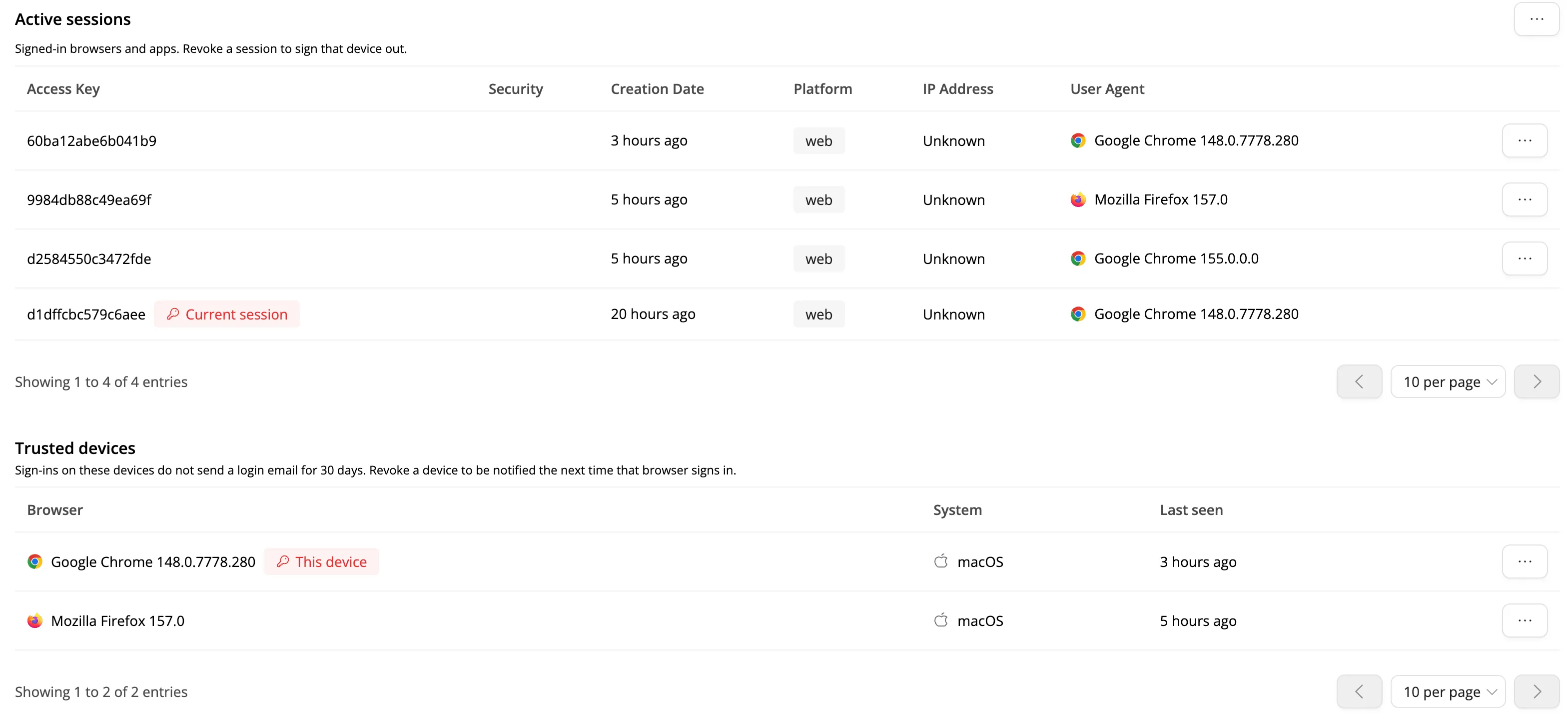
This list shows signed-in browsers and apps. Revoke a session to sign that device out.
- Terminate other sessions is in the heading menu. It signs out every session except the current one.
- Each other session has a row menu to Revoke session.
Trusted devices
Subnoto emails you when your account signs in on a new device. After that email, the browser is remembered for 30 days as a trusted device. Repeat sign-ins on the same browser family and operating system (for example Chrome on macOS) do not send another email until you revoke the row or 30 days pass. A later sign-in on that device refreshes the 30 days.
Columns: Browser, System, Last seen, and Added. Your current browser is badged This device.
- Open Settings → Sessions & devices.
- In Trusted devices, open the row menu for the browser you want to forget.
- Click Revoke, then confirm. The next sign-in on that browser sends a login email again.
If the list is empty, the next new-device login email will register this browser.
Team administrators can limit who receives login emails (All team members, Admins only, or Nobody) in Settings → Configuration → Session policy. People who are not on a team still get the new-device email. A trusted device still skips the email for someone who would otherwise receive it.
Related guides
- Team configuration - session duration and login notification emails
- Device-bound sessions - hardware-bound session badge