
What Form Recipients See
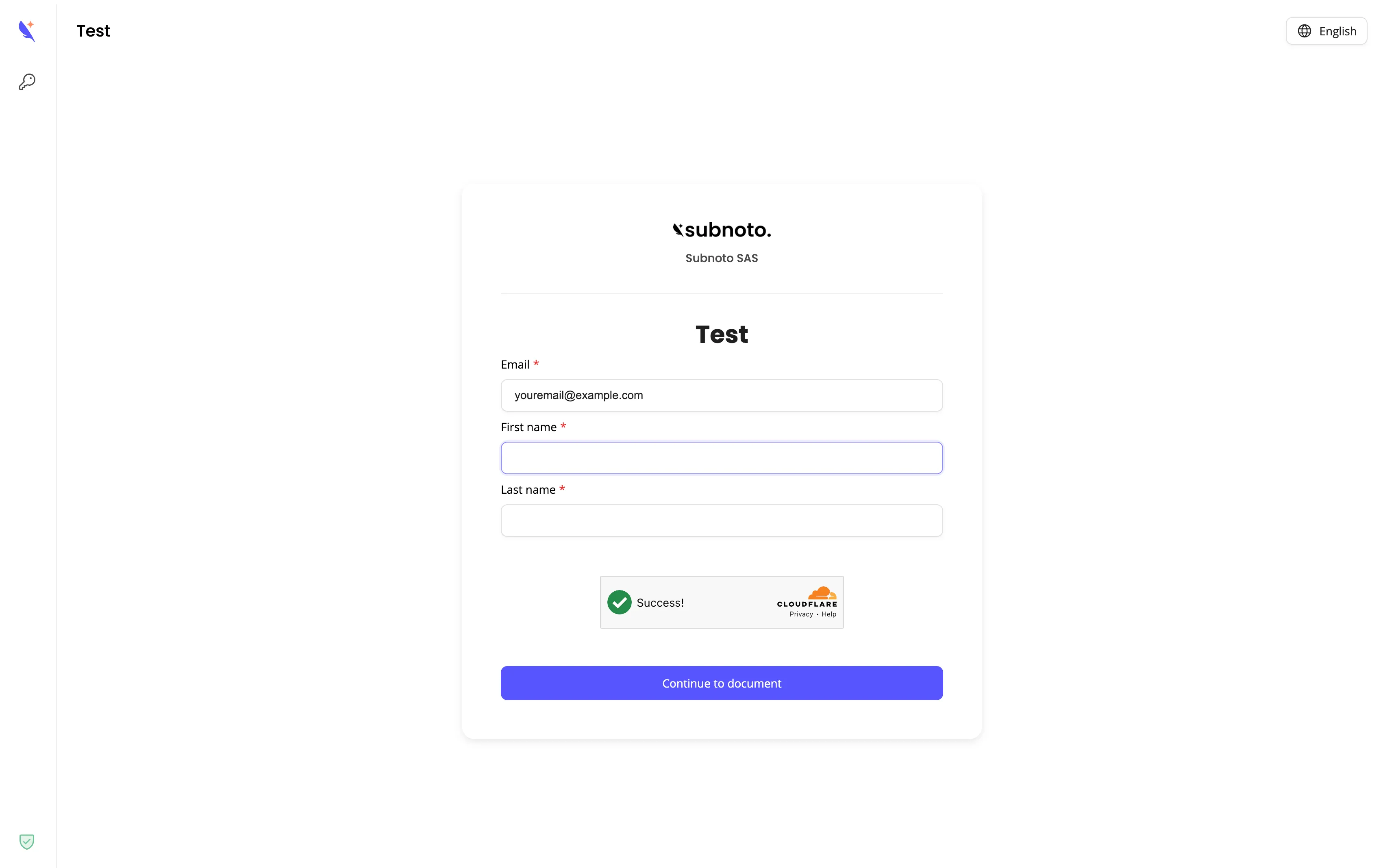
This page describes the experience of someone who opens your self-service signature form link. This is a public intake page where they enter who should sign - not the PDF document with fillable fields. Knowing this helps you explain the process to recipients and set expectations.
Opening the link
- Recipients do not need a Subnoto account. They open the link in any browser (desktop or mobile).
- The link must be complete: it includes a secret part (after
#sk=). If you share only the base URL without that part, the form will not load and they will see an error. Always use Copy Link from the app so the full URL is shared.
What they see on the intake page
- Your team branding - Team name and logo (if you have set one) at the top.
- Form name and description - The name and description you gave when creating the form.
- One section per recipient - For each recipient label on the template (e.g. “Customer”, “Witness”) there is a block of fields:
- Email (required)
- First name (required)
- Last name (required)
- Any extra fields the form creator enabled (for example phone, company, or address). Those are also required when shown.
- Verification - A short verification step (e.g. checkbox or challenge) to reduce abuse. They must complete it before submitting.
- Submit button - e.g. “Continue to document”.
After they submit
- Subnoto creates an envelope from your template using the details they entered for each recipient.
- The envelope is sent automatically. You (the template owner) appear as the sender.
- Each recipient receives the usual signing email with a link to open and sign the document.
- On the form page they see a success message:
- If there is one recipient: e.g. “Thank you, check your email address” and a note that an email was sent to that address.
- If there are multiple recipients: e.g. “Signature requests have been sent to all recipients.”
They can then close the page; all further steps (signing, completion) happen via the signing link in their email, as with any Subnoto envelope.
Troubleshooting (for you and your recipients)
If you or a recipient run into issues, these are the most common causes:
| Issue | What it means | What to do |
|---|---|---|
| Invalid or missing link | The URL is incomplete or the secret part (#sk=…) is missing. | Share the full link using Copy Link from the Self-service signature forms list or from the form’s confirmation / edit view. |
| Form not found | The form was deleted or the UUID is wrong. | Confirm the form still exists in Self-service signature forms. If you recreated it, share the new link. |
| Form closed | The form has reached its maximum responses (if you set one). | Create a new form or increase the limit by editing the form (if you need more responses). |
| Form unavailable (no recipients) | The template has no recipients (e.g. they were removed before forms were deleted). | Restore at least one recipient on the template, or use a different form. |