
Bulk Send from a Template
Bulk send lets you create and send many signature requests from a single template in one guided flow. You assign fixed recipients once (for example your sales rep), choose which template label receives a different person on each send (for example the customer), build a list from your contact book or a CSV file, then Subnoto creates and sends one envelope per list row.
When to use bulk send
- You send the same document to many people with the same internal signer(s) each time
- You already use a template with the right fields and recipient labels
- You have a contact list or CSV export from another tool
For a single signature request with hand-picked recipients, use Sending from a Template instead. To let people request a signature via a self-service signature form link, use Self-service signature forms.
How to start
You can open bulk send from:
- Templates list — Actions menu (three dots) → Prepare bulk send (when your plan includes the feature)
- Template edit page — Prepare bulk send in the sidebar or actions
You are taken to Bulk send from template for that workspace and template.
Before you begin
- Template recipients — Your template should have at least two recipient labels when you need one role to change per send (for example
clientandsales). With only one label, every envelope uses that role for the list row you select. - Template status — The template must be draft or active.
- Signatures — Each successful send uses signatures from your team’s monthly allowance. The app warns you if the batch would exceed your remaining limit.
Walkthrough
-
Choose the variable recipient
If the template has more than one recipient label, select which label receives a different person on each envelope (for example
client). All other labels are fixed for the whole batch. -
Assign fixed recipients
For each fixed label (for example
sales), select a contact, team member, or enter details manually — the same person is used on every envelope in the batch. -
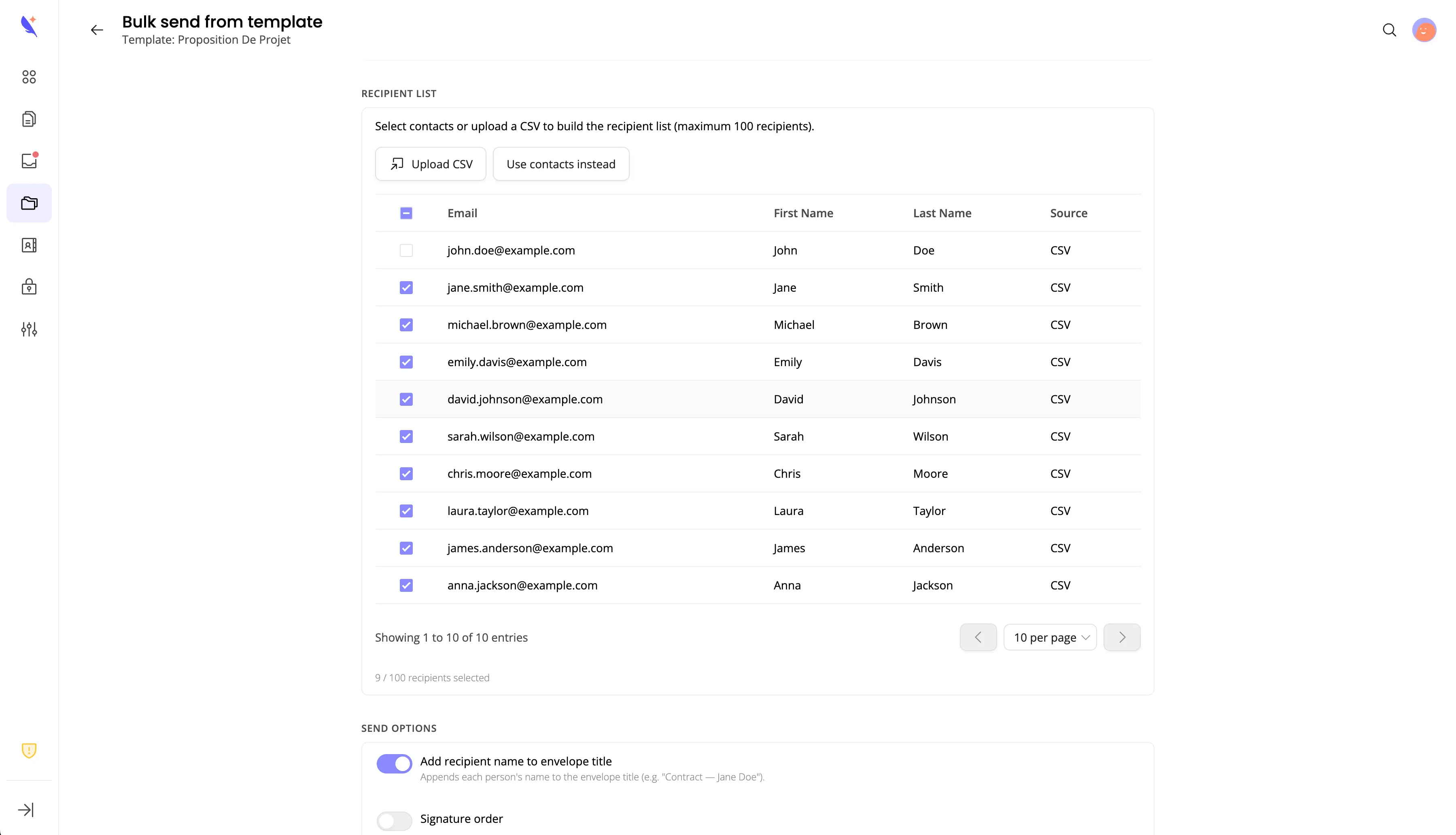
Build the recipient list
- Select rows from your contact book, or
- Click Upload CSV and import a file (see CSV format below).
The counter shows how many recipients are selected (maximum 100 per batch).
-
Configure send options (optional)
- Append each person’s name to the envelope title
- Signature order, read-all-pages requirement, expiration, reminders
- Custom invitation message with placeholders
@name,@firstname,@lastname,@email(replaced with the variable recipient’s details per envelope; all signers on the same envelope receive the same message) - Sender display name
-
Start the batch
Click Send to N recipients. Subnoto processes envelopes one after another with a short pause between each send. Progress shows per row (pending, sending, sent, failed). When finished, you can open successful envelopes or Retry failed for rows that errored.
CSV format
Upload a .csv file with a header row and one row per recipient. Column names are case-insensitive in the header row.
Required columns
| Column | Description |
|---|---|
email | Signer email |
firstname | First name |
lastname | Last name |
Optional column
| Column | Description |
|---|---|
phone | Phone number (if used by your workflow) |
Example file
Save as UTF-8 text, for example bulk-recipients.csv:
email,firstname,lastname,phoneLimitations
| Topic | Limit |
|---|---|
| Plans | Pro and Ultimate only |
| Batch size | Up to 100 list recipients per run |
| Sending | Sequential (not parallel); brief pause between each envelope |
| Fixed vs variable | Exactly one template label is variable per batch; all others are fixed |
| CSV | Simple comma-separated format; required columns only; no Excel-specific features |
| Retries | After a run completes, you can retry failed rows only (not re-send successes from that screen) |
| Progress | Keep the browser tab open while the batch runs; closing the page may interrupt in-progress work |