
Datarooms
Datarooms let you share a set of files with your team and with external people, separately from envelopes and templates. Use them for due diligence, fundraising data rooms, or any situation where you need to share several files and know exactly who viewed or downloaded what.
Create a dataroom
- Open Datarooms from the main menu and click New Dataroom.
- Name it and pick a workspace (and an optional description shown to invited viewers).
- Drag documents into the dropzone, or click to browse.
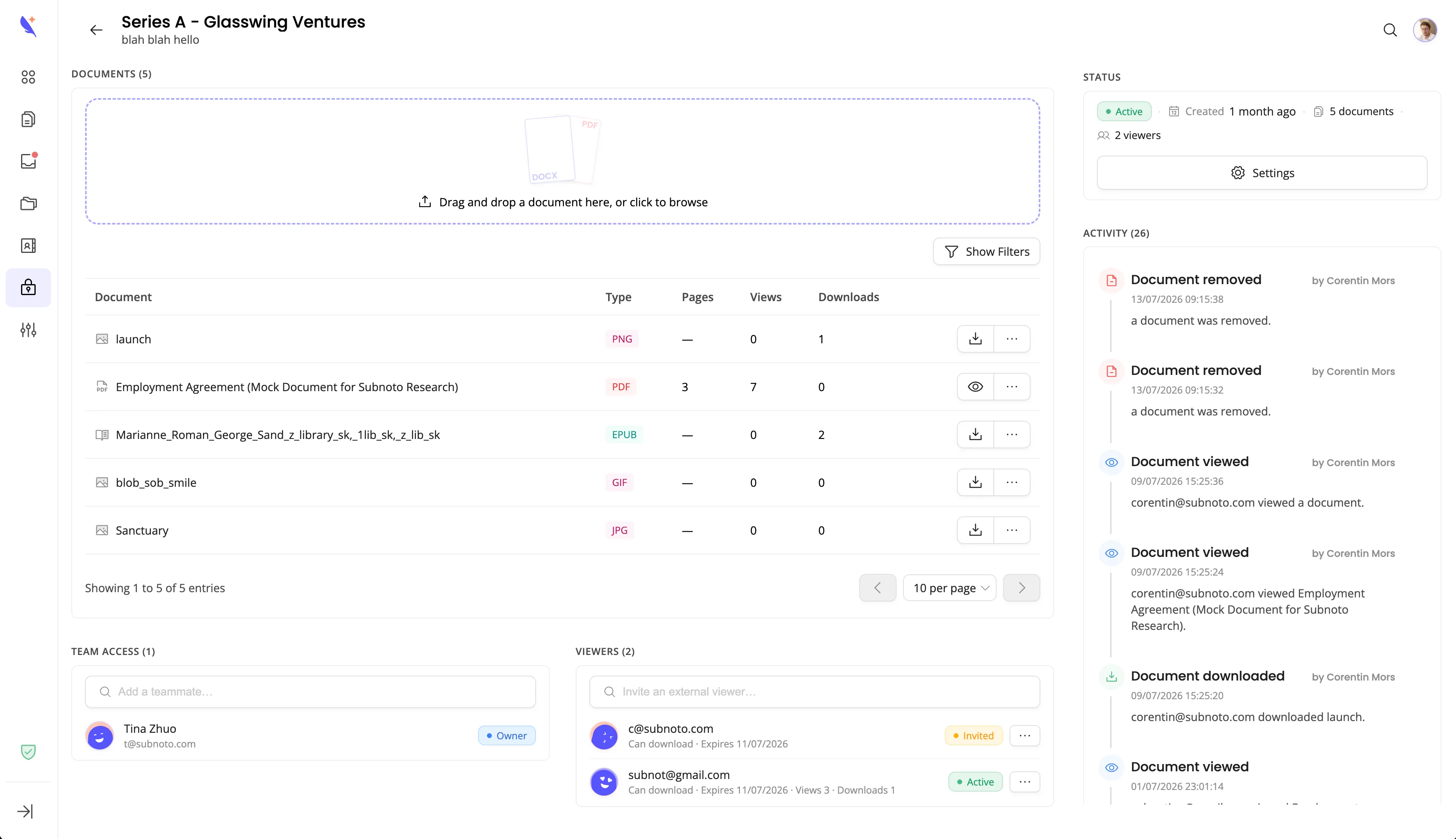
Datarooms accept a wide range of file formats (PDF, Office documents, images, archives, and more), up to 50 MB per file. PDFs and images can be previewed directly in the browser; other formats are download-only for viewers.
Team access
By default, only the creator (owner) can access a dataroom internally. Add teammates from the Team access section and assign them a role:
- Owner - full control, including deleting the dataroom
- Editor - can add or remove documents and manage viewers and teammates
- Viewer - can view and download documents
Only teammates already on your team can be added; invite them first from Settings → Members if needed.
Inviting external viewers
Invite people outside your team from the Viewers section:
- Click Invite an external viewer and enter their email (and optionally first and last name).
- Choose whether they can download documents or only view them.
- Optionally set an expiration date for their access.
- Send the invite.
Viewers open the dataroom through a dedicated link, with no Subnoto account required. You can revoke access at any time, and re-invite a revoked viewer later. Edit a viewer’s download permission or expiration date at any time from the Edit access action.
Activity log
Every document view and download, by teammates and external viewers alike, is recorded in the dataroom’s activity timeline, along with viewer invitations, revocations, and document changes. Use it to know exactly who accessed what, and when, for example before closing a deal or an audit.
Archiving and deleting
Archive a dataroom to disable uploads and access changes while keeping it visible to viewers (with an archived notice); restore it later to resume normal access. Delete permanently removes the dataroom and all its documents, viewers, teammates, and activity history; this cannot be undone.
Related guides
- Inviting team members - invite teammates before adding them to a dataroom’s team access