
Creating and Editing Templates
A template is a reusable document with fixed recipient roles (e.g. “Customer”, “Witness”) and signature fields. You create it once, then send from it many times.
Where templates live
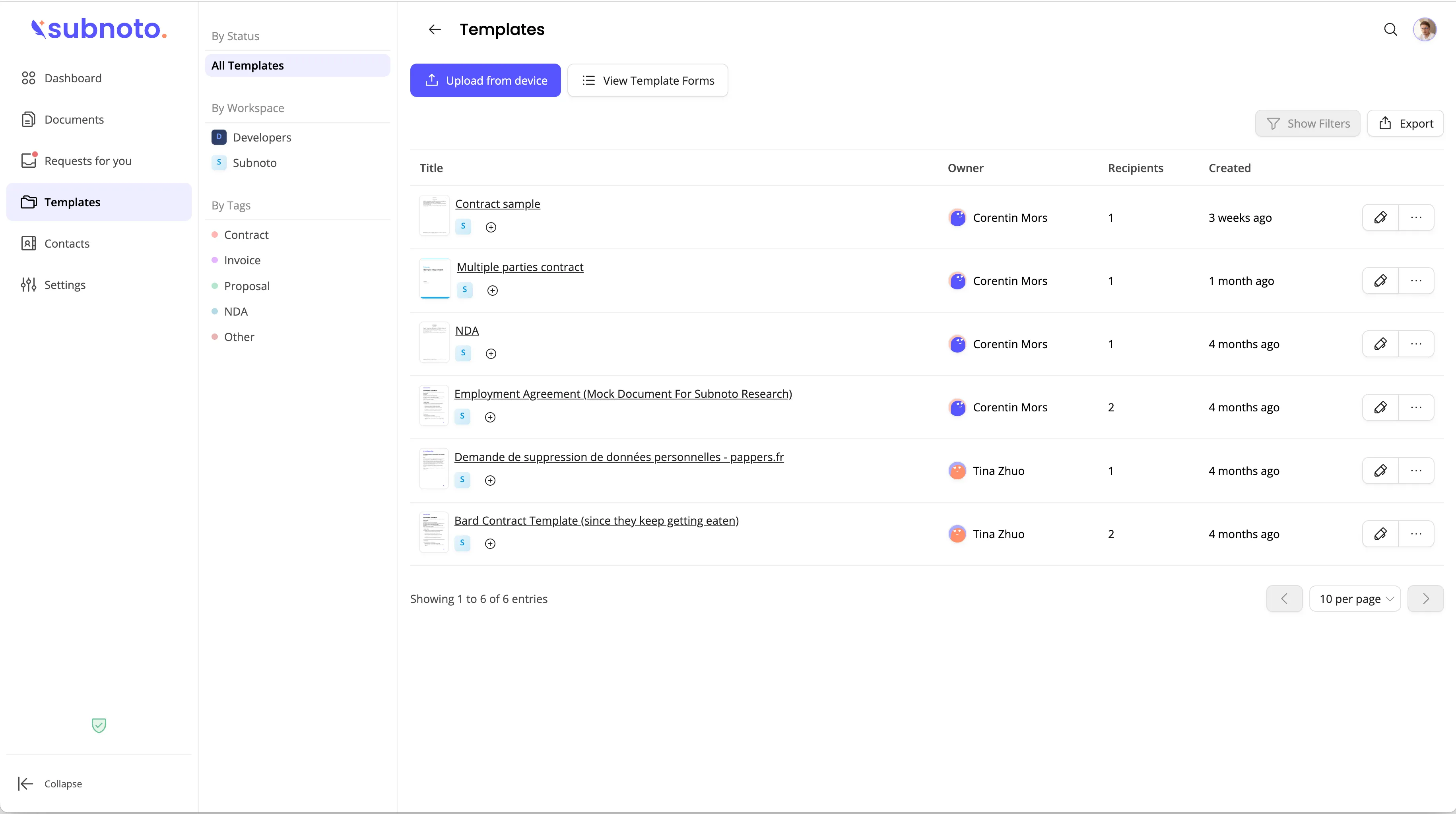
- Open Templates in the app to see all your templates.
- Templates are grouped by workspace. Use the sidebar to filter by workspace or view all.
- Each row shows the template title, owner, workspace, recipients, and tags. Use the actions menu (three dots) to edit, create a signature request, create a form, or delete.
Creating a new template
-
Go to Templates
- In the app, go to Templates.
- Optionally select a workspace in the sidebar so the new template is created in that workspace.
-
Upload your document
- Use “Upload from device” (or drag and drop a file onto the upload area).
- Supported formats are the same as for regular documents: PDF and Word. See Uploading Documents for details.
- After upload, you are taken to the template edit page.
-
Add recipients
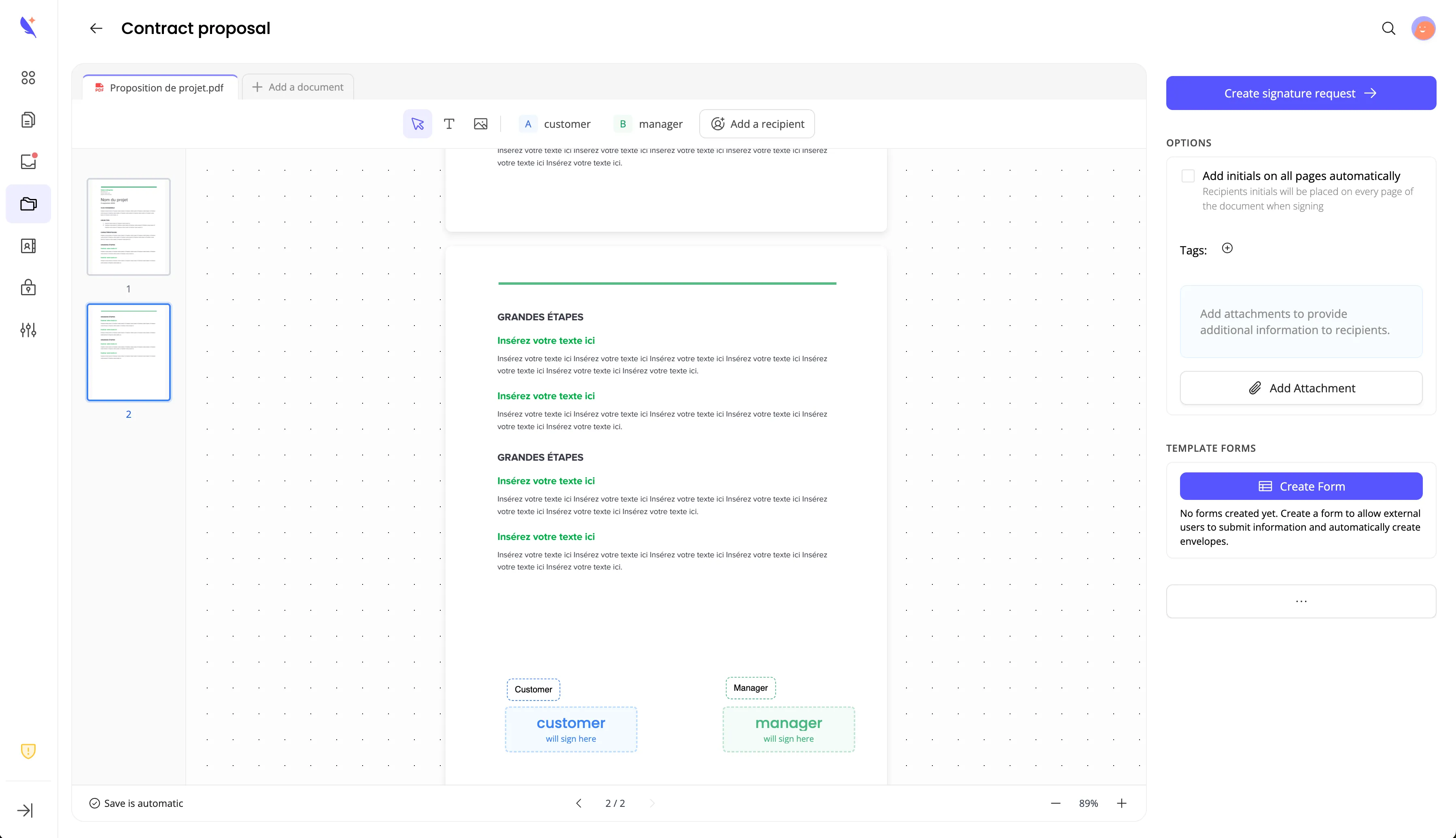
- In the template edit view, open the sidebar and find the Recipients section.
- Add one or more recipients with labels (e.g. “Customer”, “Witness”, “Manager”). These labels define who must sign when you send from this template; you do not enter specific email addresses here.
- The same concepts as Adding Recipients apply: you define the roles. When you later create a signature request from the template, you will then choose or enter the actual people for each role.
-
Place signature fields
- Place signature and other fields on the document for each recipient, as in Placing Fields. Each recipient has a color; assign fields to the correct recipient so signers only see their own fields.
-
Set the template title
- Use the title at the top of the page so you can recognize this template in the list (e.g. “NDA”, “Sales Contract”).
Editing an existing template
- From the Templates list, click Edit (or the template row) to open the template edit page.
- You can change the document (if your workflow allows), the title, recipients, and field placements. Changes are saved as you go.
Important: If this template has any self-service signature forms, you cannot add or remove recipients. You can still edit the document and fields. To change recipients, delete all self-service signature forms first, then edit recipients.
Tags and organization
- In the template edit sidebar you can add or remove tags. Use tags to filter templates in the list (e.g. “NDA”, “Q4 contracts”).
- Use workspaces to keep templates for different teams or projects separate.
Next: Send from your template by creating a signature request or by creating a self-service signature form to share a public link.