
Workspace Stamps
Workspace stamps let your team store reusable stamp images (for example company seals or approval marks) in each workspace and place them on PDFs while preparing envelopes or templates.
When to use workspace stamps
- You need the same visual mark on many documents (for example “Approved”, a company seal, or a department stamp)
- You prepare documents in the envelope or template editor and want faster placement than uploading an image each time
- Different workspaces in your team use different stamp sets
Stamps are placed on the document during preparation. They are not signature fields—recipients do not interact with them when signing.
Manage stamps in Settings
- Open Settings → Stamps in the Subnoto app.
- Select the workspace (if you belong to more than one).
- Click Upload stamp and choose a JPEG or PNG image (maximum 1 MB).
- Optionally rename or delete stamps from the card menu.
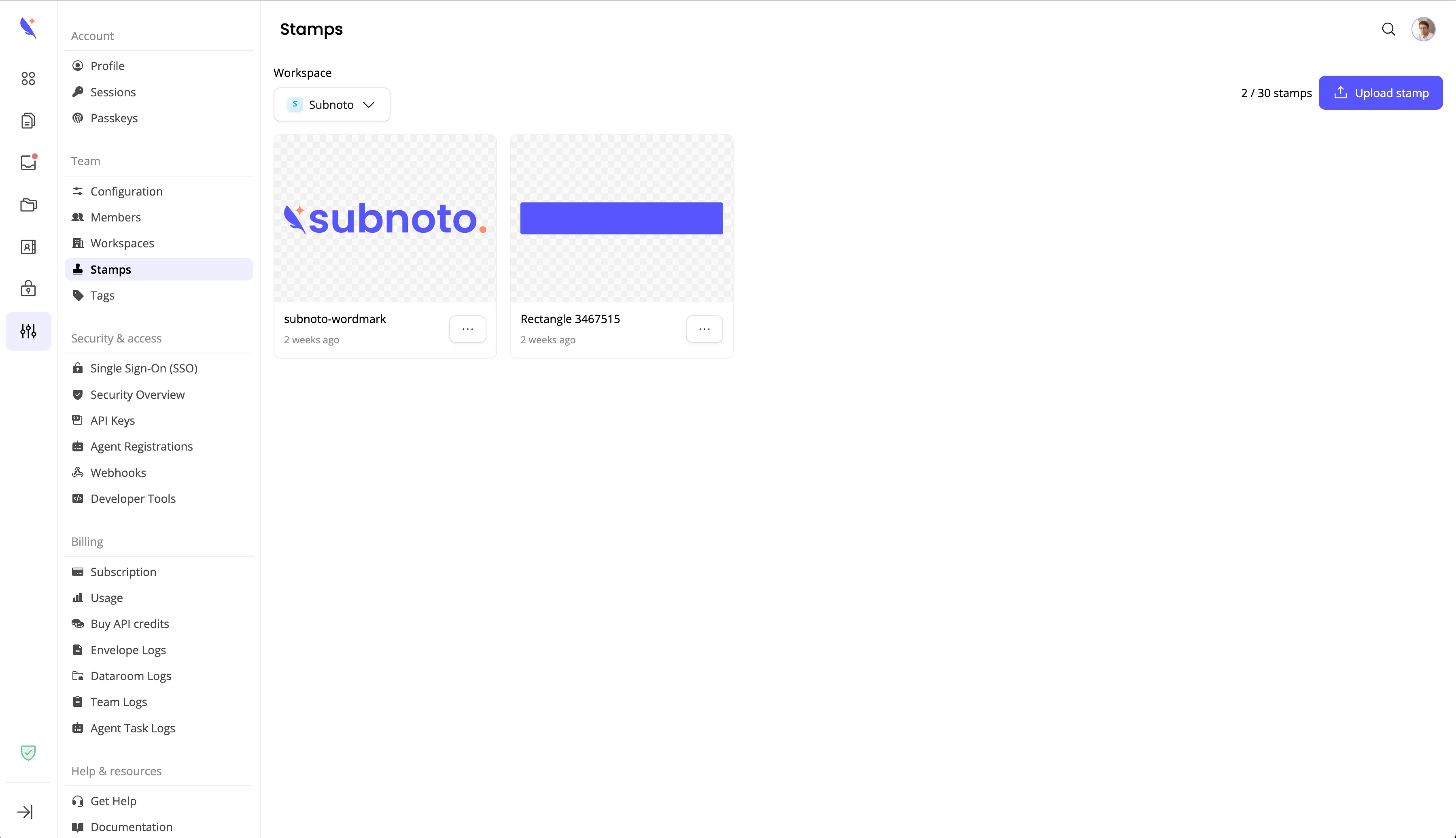
Each workspace can store up to 30 stamps. Team members with workspace management permissions can upload, rename, and delete stamps.
Place a stamp on a document
- Open an envelope or template in the document editor.
- In the toolbar, click Add stamp (stamp icon).
- Choose a stamp from your workspace library, or upload a new one from the picker.
- Click on the document where the stamp should appear.
- Resize or move the stamp like any other placed element.
Stamps appear on the final PDF sent to signers and in completed documents.
Related guides
- Placing signature fields — signature zones and other interactive fields
- Templates — reuse prepared documents with stamps already placed